Make your own Steam Machine (Windows)
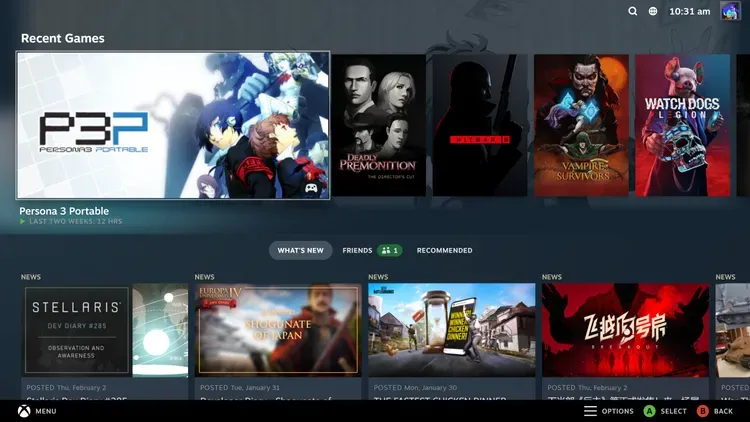
Connecting your computer to your TV is simple enough, you just plug your TV into the output of your computer. Getting your PC to behave like a console you can just turn on and start playing on can be a bit trickier. Typically you need to grab a mouse and keyboard, log into windows, launch Steam, and then launch your game.
Here is a quick guide to set up your computer to bypass those steps and let you use it almost exactly like a console. (Steps 1 and 2 can be skipped if you are using a local only Windows account with no set password).
Setup:
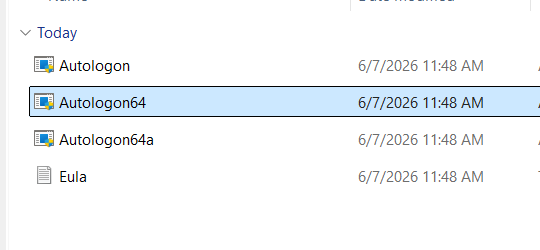
- Download the Sysinternals Autologon tool. Extract the downloaded zip archive and run the program titled Autologon64.
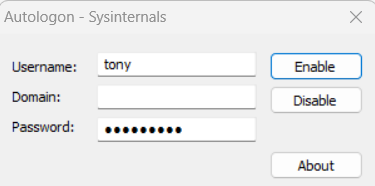
- Enter your username and password you use to login for Windows, then click Enable. You can then close out of everything.
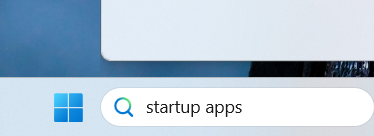
- Check that Steam is set to auto start. Search Startup Apps in the Windows search bar and select the first option. Make sure the toggle is on for Steam.

- Open Steam, go to Settings, enable Start Steam in Big Picture Mode.
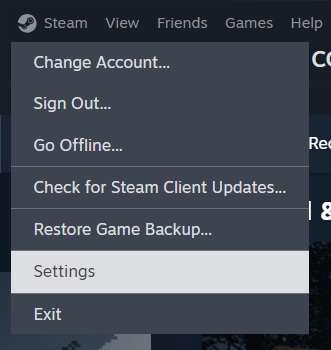
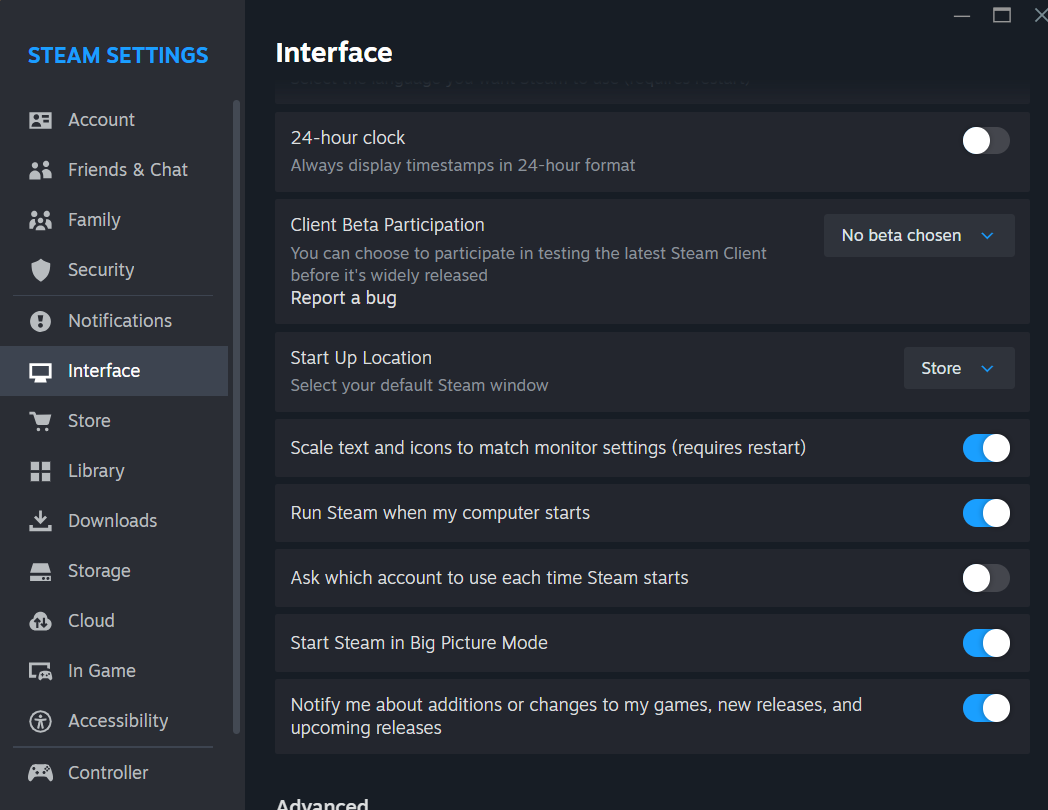
That's it! Next time you start your computer it should automatically log you in on Windows and launch steam in a console like, TV friendly interface.
Extra:
I have found that some Bluetooth controllers do not stay connected to Windows for some reason. They require you to remove them from the list of Bluetooth devices in Windows and re-add them each time your restart your computer. One controller I have found that does not do this is the QRD Spark N5. This controller also has the added benefit of working with PS3 and PS4 consoles natively and uses USB-C to charge.